Your daily driver
The Workbench: full sight on any project in seconds
A question lands about a project you have not touched in a week. You open it, choose the focus the question is about, say permitting, and the answer assembles itself: the permitting notes fill the middle, and the task list narrows to only the permitting work, each item showing where it stands. The Workbench holds all of it on one screen, a side rail of everything you reach for, the notes, and the focused task list, under a banner of the project's key dates. You answer while the phone is still in your hand, with no hunting and no re-orientation.
- Pick a project, choose a focus, and its running notes and only the tasks under it are in front of you at once.
- A side rail keeps folders, contacts, site data, meeting minutes, and a full task snapshot one click away.
- Critical Focus narrows the task column to flagged work while your notes stay where they are.
- A row of milestone cards keeps the key dates in view, each a click from a quick date adjust.
- Drag the dividers or collapse the side rail for wider sight in a moment.
The design studio
The Builder: the plan is the live project
You shape a project once: its tasks, its milestones, how they depend on each other, and the folders behind them. From then on the Builder keeps every date honest for you. You build a task by editing the real card, the same one your team sees, so what you design is exactly what ships. On the Timeline you set how the milestones relate and the gaps between them, and every date computes itself from there. Push one and everything tied to it moves, with a plain-English receipt showing what shifts before you commit. When a real date lands, it overrides the plan and carries downstream on its own, so the schedule is always the live one, never a copy you forgot to update.
- You edit the real task card, not a form, so what you build is exactly what ships.
- One date engine computes every date, and a plain-English receipt shows every consequence before you commit.
- When a real date lands, it overrides the plan and cascades downstream on its own, so the plan is never stale.
- Structure authors the very lenses your Workbench filters by, and Folders mirror to OneDrive, Google Drive, or Dropbox.
Templates
Design once, reuse forever
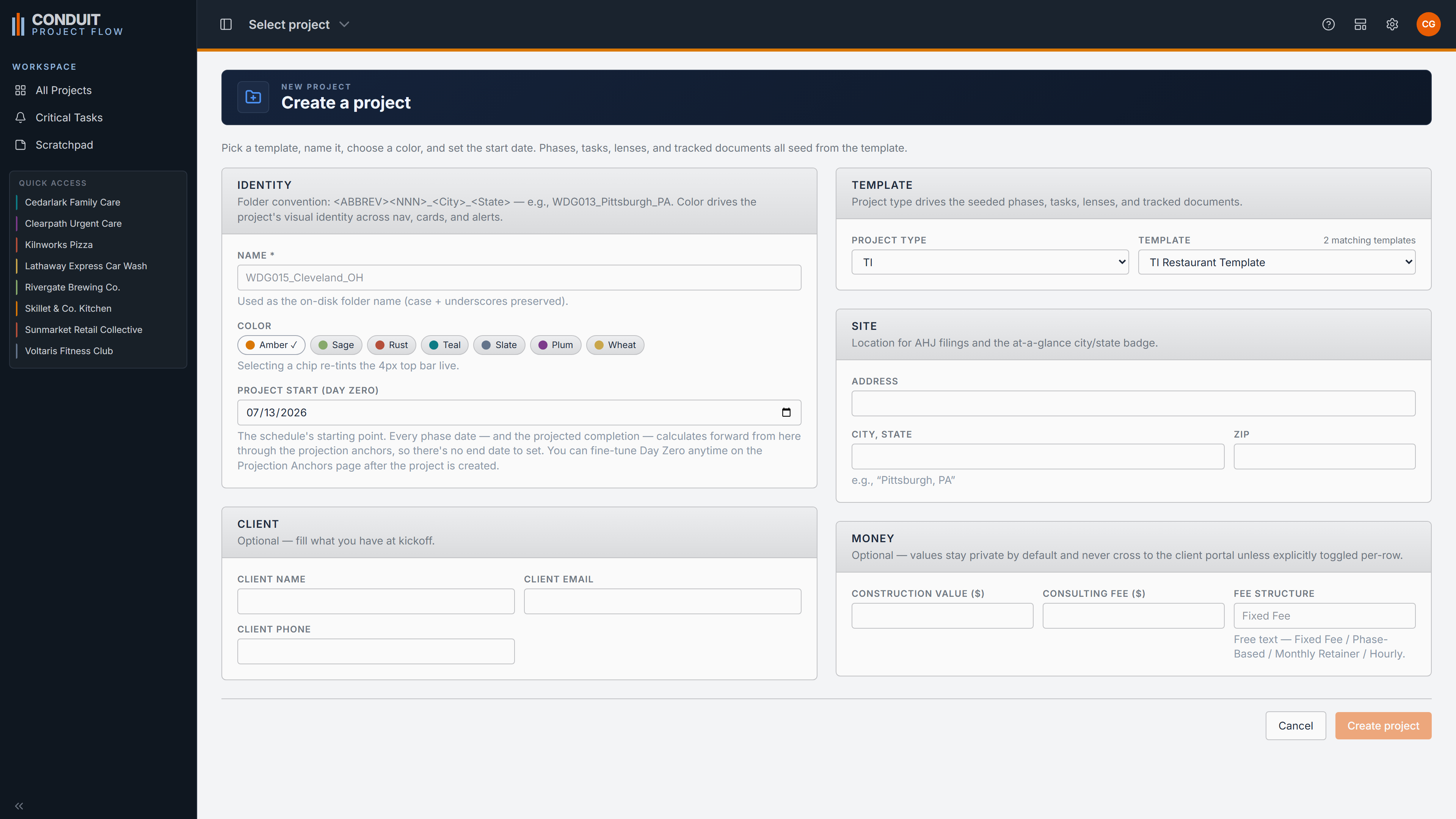
A whole build freezes into a reusable template: its tasks, milestones, lenses, tracked documents, and folders. Conduit ships with one for TI work and one for ground-up, including a tenant-improvement restaurant build you can start from. Open a new project from a template, set its start date, and a fully independent job stamps out in seconds, its own dates computed from its own beginning. Templates are copied, not linked, so refining one tomorrow never touches a job you started today.
- Ships with TI and ground-up templates you customize, use in part, or set aside.
- A new project and a start date seed phases, tasks, lenses, and tracked folders at once.
- Copied, not linked, so every stamped job is independent from its first day.
Overview
The whole project on one command page
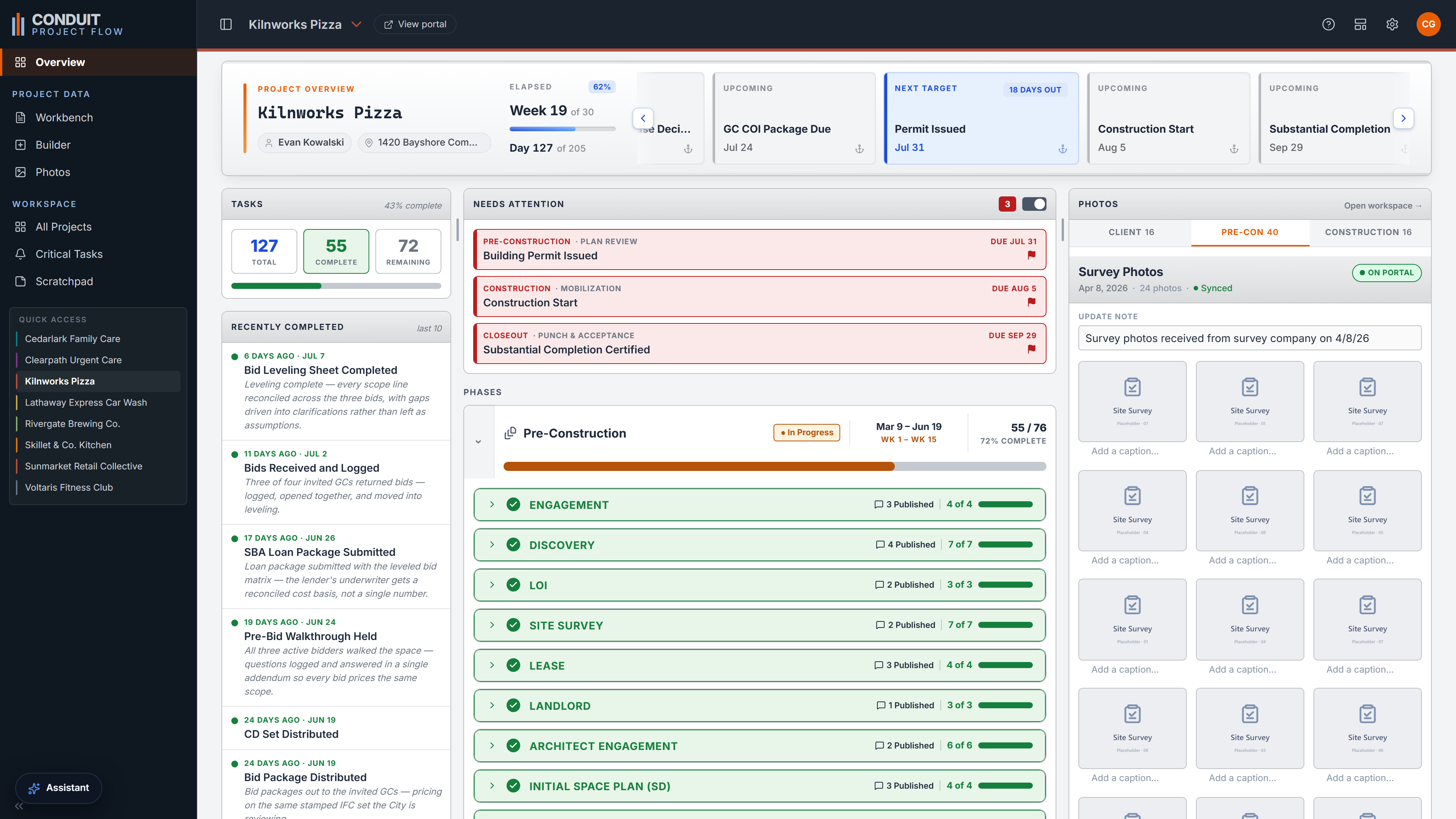
Overview is the full read on a single project. The milestone banner sits above the task roll-ups, a feed of what was just finished, a needs-attention list, a phase-by-phase breakdown, and a photos preview. It is where you take a whole project in at once before a meeting or a call, and it is the exact view your clients see in the portal.
- A milestone banner and phase breakdown read the whole project at a glance.
- A feed of what was just finished, so status tells its own story.
- Needs-attention surfaces the open items before anyone has to ask.
Client Portal
A read-only mirror your clients can follow on their own
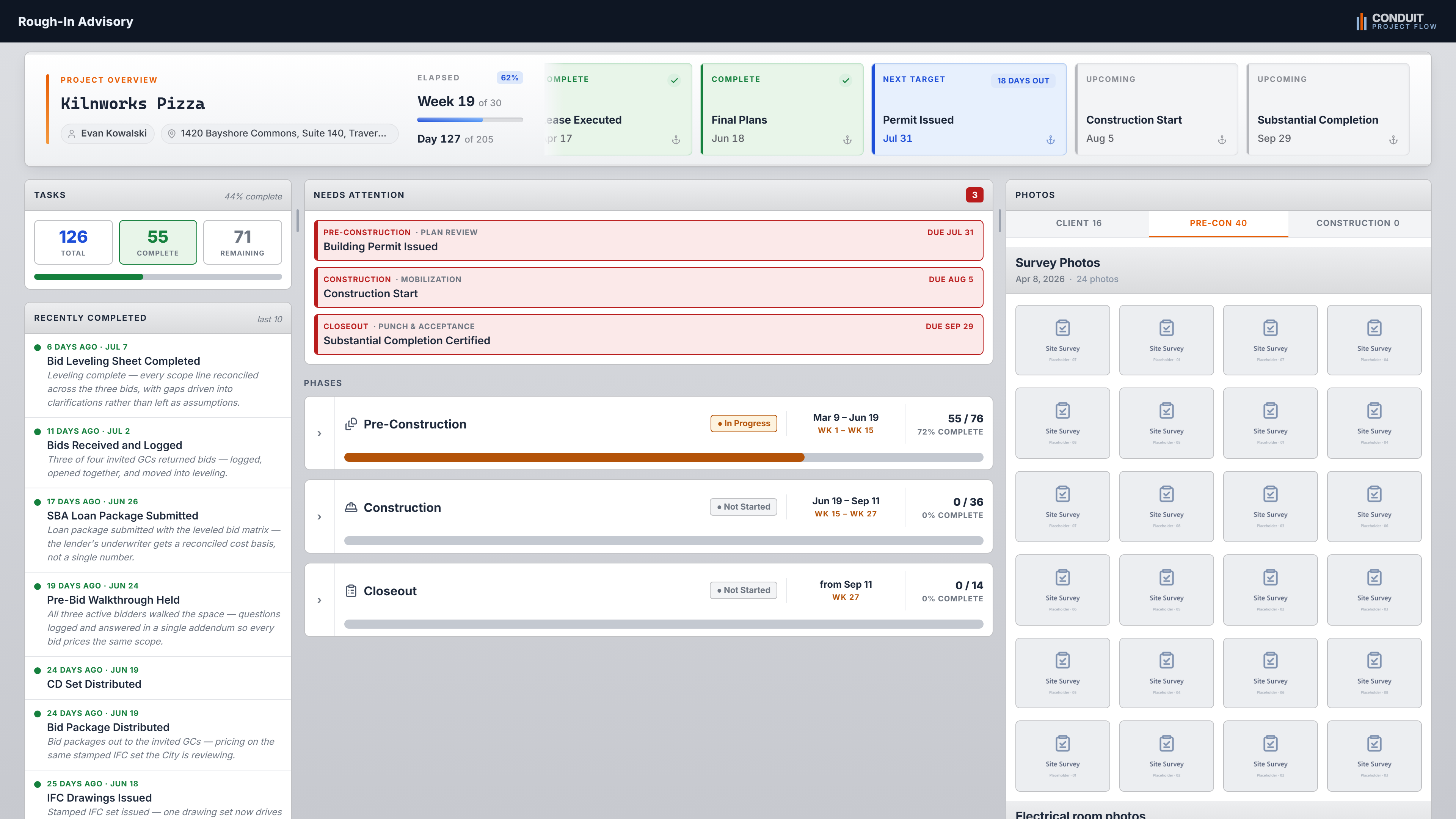
Share a read-only version of Overview behind a PIN and a custom link at projects.conduitprojectflow.com. Clients and franchisors follow status on their own, and it holds up on screen during a weekly meeting, so the repeat status emails and calls fall away. You control what crosses to the client, so costs stay on your side unless you choose to share them. Whatever you keep internal, from private notes to ghosted tasks, stays on your side of the glass.
- A PIN and a custom link, with nothing for the client to install or manage.
- You control whether costs ever appear in the portal.
- Private notes and ghosted tasks never cross over, so the client sees a clean mirror, never the workshop.
Critical Tasks
Plan your week across the whole portfolio
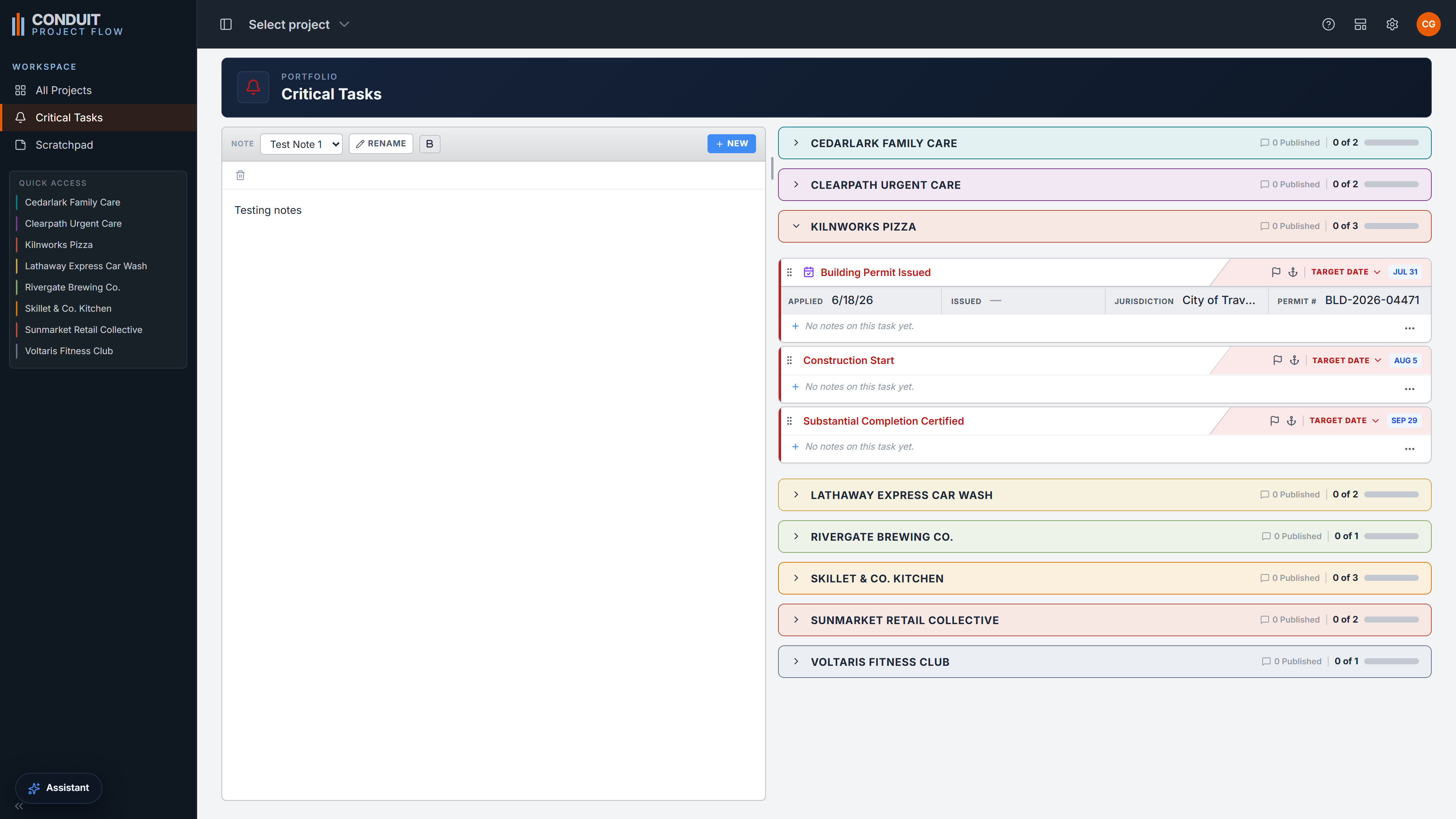
Flag any task critical and it rolls up here: every critical task across every project, on one page, with its own notepad. It is how you plan a week when the urgent work is scattered across your whole book of projects. One list, one place to think, nothing hiding inside a single project. Inside one project, the Workbench's Critical Focus does the same at project scope.
- Every flagged task across every project, gathered into one cross-project list.
- A built-in notepad to plan the week around what is actually urgent.
Photos
Job-site photos, organized and shared
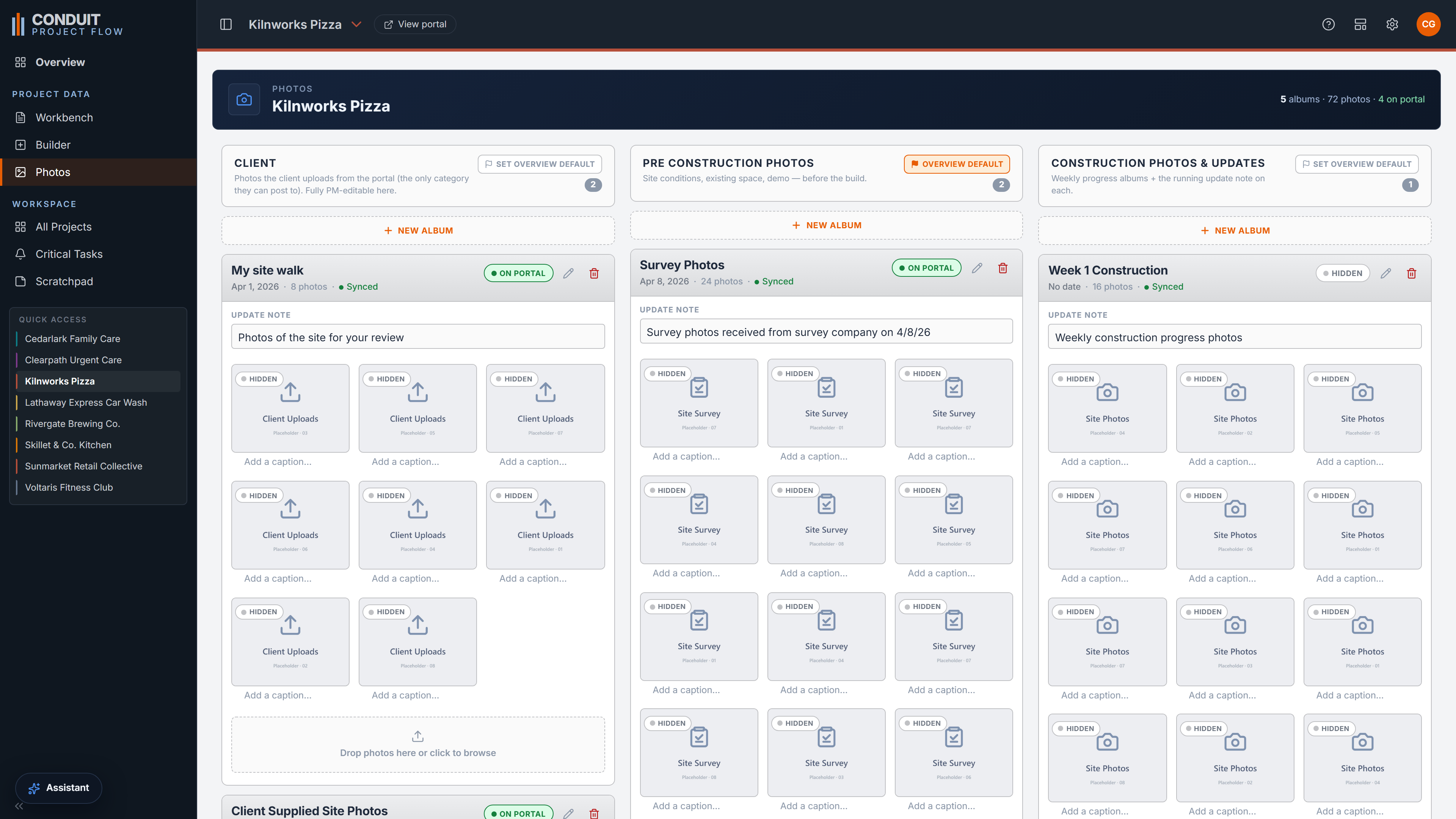
Photos keeps three sections: a client-upload album your clients post to straight from the portal, and your own pre-construction and construction albums. Group shots into dated, captioned sets, hide any album from the client with one toggle, and sync the ones you choose out to the portal.
- A client-upload album, plus pre-construction and construction sections you control.
- Dated, captioned albums, each with a hide-from-client toggle.
- Sync the albums you choose to the client portal.
AI Assistant
AI that reads your project
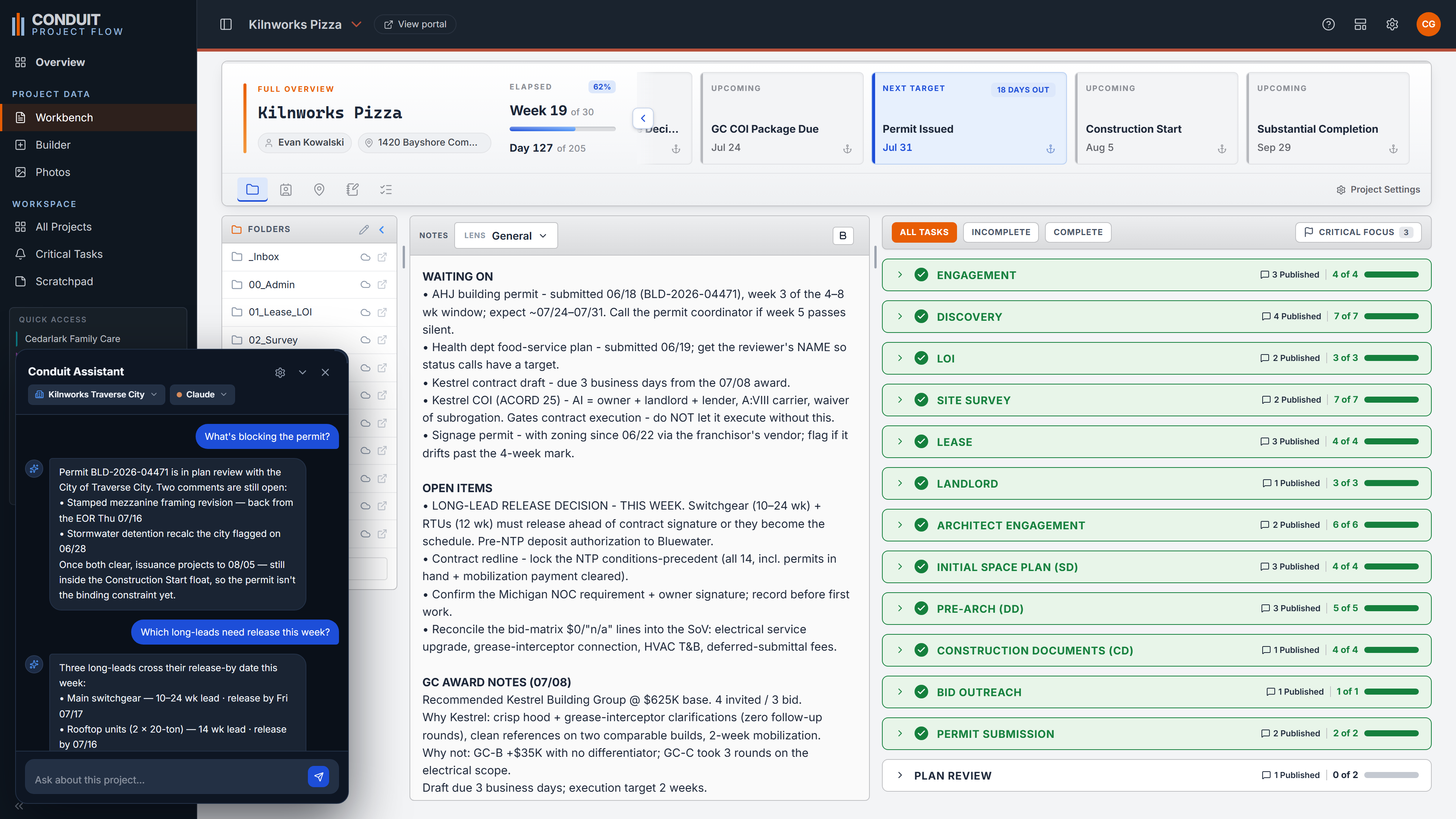
A copilot scoped to the project, docked beside your work. Ask what is holding up the permit and it reads the live schedule to answer, naming the gating items and their dates. Ask it to write the long-lead release email to a supplier and it drafts it on the real project data. It works from the same structure the date engine produces, so its answers track the actual schedule instead of guessing.
- Ask about the project in plain language and get answers grounded in its live data.
- Draft real project emails, from a switchgear release to a status note, straight off the schedule.
- Scoped to one project at a time, so every answer stays on the job in front of you.
Admin
Firm-level oversight, access under control
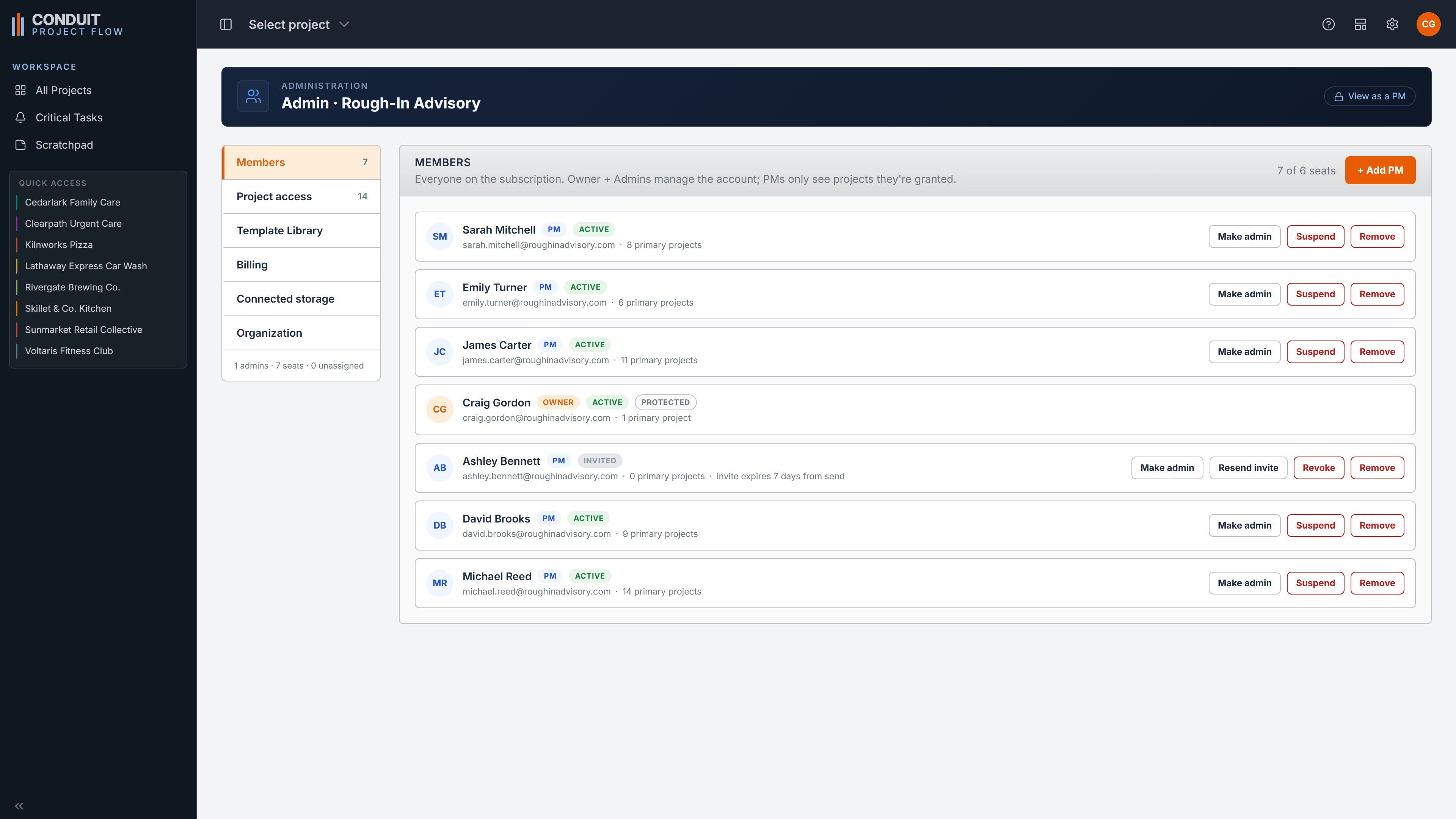
Admin is the firm layer for leads and admins: assign users to projects, cover for an absent PM, and see who is carrying what across the whole portfolio. Each PM sees only the projects they are granted. It is oversight for the people who run the firm, without showing anyone more than they should see.
- Assign users to projects and cover for an absent PM without crossing wires.
- Portfolio oversight for leads and admins across every job in the firm.
- Each PM sees only the projects they are granted.